Skip to main content.
Notice: Digital Banking Upgrade Now Available
Logo: FDIC FDIC-Insured - Backed by the full faith and credit of the U.S. Government

Get Ready: New Digital Banking Coming Soon
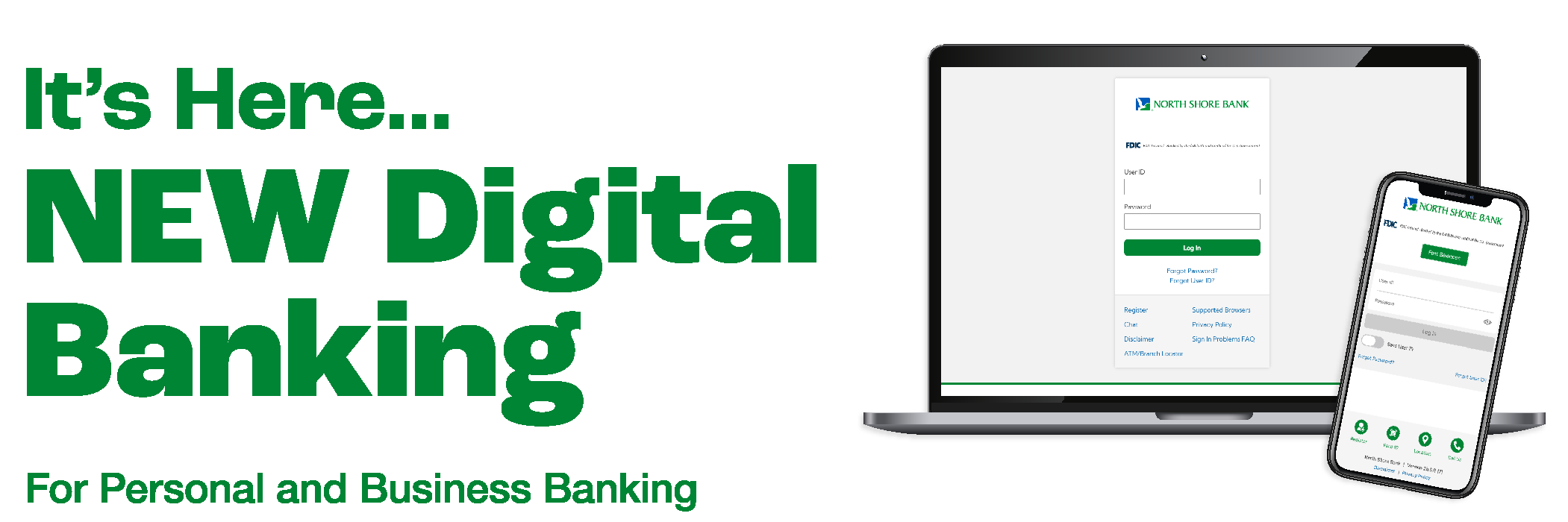
Get Ready: New Digital Banking Coming SoonGet Ready: New Digital Banking Coming Soon

Our new and improved Digital Banking platform is now available! To help you get started with confidence, please review the information and steps below to get logged in for the first time and ensure a smooth transition.

Personal Banking Users

The chart below offers an overview of the key updates and how they may affect you.

Login Credentials

  • Log in to the new Digital Banking Platform Only users who have logged in during the past 12 months have been converted to the new platform.
  • Use your current User ID and Password to log in. Your first login will require you to manually enter your credentials, as Face ID or fingerprint login will be unavailable. Once you’ve successfully signed in for the first time, you can re-enable your biometric preferences.

Digital Banking Through Your Browser

  • Logging in from a desktop or browser. You’ll log in from North Shore Bank’s home page at northshorebank.com.
  • If you bookmarked the browser-based login page for the previous personal Online Banking platform, you will now be redirected to the new login page.

Digital Banking in the Mobile App

  • Update the app. If you have automatic app updates enabled, the new version will update automatically when available. Otherwise, you can manually re-download the app through your app store.
  • Look for the new app icon and name. Once the app is updated, you’ll see a new icon, and the app name will display as North Shore.

  • Need the app? Search for “North Shore Bank Personal” in Apple’s App Store® and “North Shore Bank” in Google Play™.
  • One app, separate logins. You’ll use the same North Shore Bank Mobile App, but personal and business accounts will continue to have separate User IDs and Passwords.
  • Re-enable Face ID or Touch ID login. After your first manual login, you can enable biometrics.

Account Alerts

  • Your existing alerts are already set up. Existing alert settings transferred over to the new digital banking platform, so there’s no need to set them up again.

External Transfers

  • Existing recurring and future-dated external transfers have transferred over to the new digital banking platform, so there’s no need to re-establish them.

Internal Transfers

  • Existing recurring and future-dated internal transfers have transferred over to the new digital banking platform, so there’s no need to re-establish them.
  • Loan payments will continue as scheduled. Existing loan payments set up through Pay Your Loan or Digital Banking will continue without interruption, unless you have not logged in within the past 12 months.

Bill Pay

  • Scheduled payments will continue to be processed. Future-dated payments that were scheduled before the upgrade will be processed as planned.
  • Your Bill Pay information has transferred to the new digital banking platform. This includes existing payees, payment history, recurring payments, and scheduled payments.

Zelle®

  • Scheduled payments will continue to be processed. Future-dated payments that were scheduled before the upgrade will be processed as planned.
  • Your Zelle® information has transferred to the new digital banking platform. This includes existing recipients, payment history, and recurring payments.

Intuit Quicken® and QuickBooks® 

  • Quicken and QuickBooks will continue to be supported in the new platform using Direct Connect, Web Connect, or Express Web Connect.
  • Reconnect your accounts after the upgrade. On or after Monday, October 26, you'll need to deactivate and reactivate your banking connection in Quicken or QuickBooks. View step-by-step guidance on reconnecting your accounts:
  • Express Web Connect (Aggregation Services) Interruption. Users who have linked their bank accounts to Intuit may experience an interruption for up to 5 business days after go-live on October 26. During this time, we recommend downloading a QFX/QBO file.

Personal Digital Banking FAQs

Yes. Your debit card will continue to work for purchases and ATM withdrawals while Online Banking and the Mobile App are unavailable.

We encourage you to note your User ID and Password prior to the update to make it easier for you to log in to new system for the first time. 

To recover your User ID or password in Online Banking, select Recover Username or Reset Password in the log in box and follow the instructions provided.

If you need assistance, please call us at 877-672-2265.

No. If you’re currently enrolled in eStatements, your enrollment has automatically carried over to the new Digital Banking platform. You’ll continue to receive your statements electronically, and no action is required on your part.

No. Personal account customers won't need to download a new app. Just update to the latest version when prompted and sign in with your User ID and Password.

  • Update the app when prompted. If automatic updates are enabled, the new version will install automatically. Otherwise, you'll be prompted to update when you open the app. If you are a business customer, you will need to download the new app.
  • Look for a new icon and app name. After the update, the app icon will change and the app will appear as North Shore on your device.
  • Need the app? Search for North Shore Bank in Apple’s App Store® or Google Play™.
  • One app, separate logins. Personal and business customers will use the same app, but each will continue to sign in with their own User ID and Password.

You have two options:

  1. Personal account customers can access the updated Digital Banking through the current Mobile App. Open your existing app and follow the prompt to download the new version. After installation, log in using your current User ID and Password.

OR

  1. Direct Download - Search for “North Shore Bank Personal” in Apple’s App Store® and “North Shore Bank” in Google Play™.

Not much. You'll continue using your existing User ID and Password. For added security, your first login after the upgrade will require a one-time passcode sent by text message or phone call to verify your identity. Once completed, future logins will work just as they do today.

If you normally sign in with Face ID or Touch ID, make sure you know your User ID and Password. You'll need to enter your credentials the first time you log in after the upgrade. After that, you can re-enable biometric login.

Along with re-establishing your biometric logins, you may need to reconnect push notifications on your preferred device after the upgrade.

Quicken and QuickBooks will continue to be supported after the upgrade through Direct Connect, Web Connect, and Express Web Connect.

Beginning Monday, October 26, you'll need to reconnect your accounts in Quicken or QuickBooks by deactivating and reactivating your connection.

View step-by-step instructions:

Please note: If your accounts are linked to Intuit through Express Web Connect (Aggregation Services), your connection may be unavailable for up to five business days after the upgrade. During this time, you can manually download and import QFX or QBO files to access your transaction data.

No. You can continue using your current User ID and Password, so there's no need to re-enroll. During your first login after the upgrade, you'll be asked to verify your identity using a one-time passcode sent by email, text message, or phone call. Once verified, you'll be able to access your accounts as usual.

If you have not accessed your accounts in over 12 months, contact Customer Support for assistance. 

Yes. Face ID and Touch ID will continue to be available in the updated Digital Banking platform. If you typically sign in using Face ID or Touch ID, be sure you know your User ID and Password before the upgrade. You'll need to enter your credentials the first time you log in after the upgrade. Once you've successfully signed in, you can re-enable biometric login.

No. If you bookmarked the browser-based login page for Personal Online Banking, you will be redirected to the new login page now that the digital banking upgrade has been completed. You can continue to log in directly from North Shore Bank’s home page at northshorebank.com.

No. Your account history has been transferred to the new Digital Banking platform, and access will be restored when the new platform becomes available on Monday, October 26.

Scheduled payments have been processed. Future-dated payments scheduled before the upgrade took place will be processed as planned. Your Bill Pay and Zelle® information has been transferred to the new digital banking platform. This includes existing recipients, payment history, and recurring payments.

Yes. Your existing alerts and alert settings have been transferred to the new digital banking platform. You will continue to receive notifications for any alerts you set up before the upgrade took place.

We're here to help. Visit our Digital Banking page for the latest information, FAQs, key dates, and support resources. If you need additional assistance, please contact Customer Support or visit any North Shore Bank office. We're committed to making your transition to the new digital banking experience as smooth as possible.

Business Banking Users

The chart below offers an overview of the key updates and how they may affect you.

Login Credentials

  • Keep your current login. Your User ID and Password will remain the same, so there is no need to re-enroll.
  • User access will remain unchanged. Existing user permissions and entitlements will automatically transfer to the new platform.
  • Soft Token Users: Beginning Monday, October 26, customers who use ACH and Wire services will need to update the DigiPass App to continue using token authentication. After the Digital Banking upgrade is complete, North Shore Bank will email soft token users instructions for updating the DigiPass App.

Business Digital Banking Through Your Browser

  • A different login experience for business customers. Starting Monday, October 26, the URL for desktop access will change and existing bookmarks will no longer work. Business customers will log in directly from North Shore Bank’s home page at northshorebank.com. From the Login menu, click on the Business tab, and enter your User ID and Password.

Business Digital Banking in the Mobile App

  • Delete the Business Mobile App. Before logging in, remove the North Shore Bank Business Mobile App from your device.
  • Download the new North Shore Bank Mobile App starting Monday, October 26. Search for “North Shore Bank Personal” in Apple’s App Store® and “North Shore Bank” in Google Play™.

  • One app, separate logins. You’ll use the same North Shore Bank Mobile App, but personal and business accounts will continue to have separate User IDs and Passwords.
  • Enable Face ID or Touch ID. After your first manual login, you can enable biometric login.

Remote Deposit Capture (RDC)

  • No changes to Remote Deposit Capture. RDC will continue to operate as it has before and can be accessed through Deposit Checks in the browser version of Business Digital Banking.
  • Allow pop-ups for RDC access. Because RDC opens in a separate browser window, please allow pop-ups from North Shore Bank in your browser settings.

Account Alerts

  • Your existing alerts are already set up. Your existing alert settings transferred to the new digital banking platform, so there’s no need to set them up again.

Internal Transfers

  • Existing recurring and future-dated internal transfers have transferred over to the new digital banking platform and will be visible to all account holders.
  • Loan payments will continue as scheduled. Existing loan payments set up through Pay Your Loan or Business Online Banking will continue without interruption, unless you have not logged in within the past 12 months.

Business Bill Pay

  • Scheduled payments will continue to be processed. Future-dated payments that were scheduled before the upgrade will be processed as planned.
  • Your Bill Pay information has transferred to the new digital banking platform. This includes existing payees, payment history, recurring payments, and scheduled payments.

ACH Manager

  • Recurring ACH transfers have automatically carried over to the new digital banking platform. You may receive an email notification when the transfer occurs.
  • The process may look different. ACH functionality will remain the same, but some tasks may be completed a little differently in the new platform.
  • ACH processing times will remain the same.

Wire Manager

  • Wire templates have transferred to the new digital banking platform. You will need to re-establish any recurring wires you previously had set up.
  • The process may look different. Wire functionality will remain the same, but some tasks may be completed a little differently in the new platform.
  • Update payee addresses. Payee addresses within a template were converted with the new digital banking upgrade, but addresses need to be manually updated to format the city, state, and zip. If you do not do this manual update, it could case rejected wire transfers.
  • Wire cut-off times will remain the same.

Intuit QuickBooks® 

  • QuickBooks will continue to be supported in the new platform using Direct Connect, Express Web Connect, or Web Connect.
  • Reconnect your accounts after the upgrade.On or after Monday, October 26, you'll need to deactivate and reactivate your banking connection in QuickBooks. View step-by-step guidance on reconnecting your accounts:
  • Express Web Connect (Aggregation Services) Interruption. Users who have linked their bank accounts to Intuit may experience an interruption for up to 5 business days after go-live on October 26. During this time, we recommend downloading a QFX/QBO file.

Business Digital Banking FAQs

Yes. Your debit card will continue to work for purchases and ATM withdrawals while Online Banking and the Mobile App are unavailable.

We encourage you to note your Username and Password prior to the update to make it easier for you to log in to new system for the first time. 

You can recover your password in Business Online Banking (desktop). Select Forgot Password in the log in box and follow the instructions provided. You will need to provide your Username and email address to proceed. 

If you need assistance, please contact Customer Support.

Most of your account information will remain intact and ready for use. This includes your transaction history, bill pay information, account alerts, ACH, wire, and RDC settings, and eStatement preferences.

Please note that you may need to schedule activity in select modules prior to October 23. Visit our Digital Banking landing page for details. 

Yes. Business customers will no longer use a separate Business Mobile App beginning Monday, October 26. Instead, both personal and business customers will access their accounts through the same North Shore Bank app. 
  • Business-only customers will need to download the new app. Search for “North Shore Bank Personal” in Apple’s App Store® and “North Shore Bank” in Google Play™. Reminder: The old Business Mobile app will no longer work and can be deleted from your device. 
  • Look for the new icon and app name. Now that the update has been completed, the app icon has changed and the app will now appear as North Shore on your device. 
  • One app, separate logins. Personal and business customers will now use the same app, but each will continue to sign in with their own User ID and Password. 

If you have both personal and business accounts, update the old North Shore Bank Mobile App when prompted. If automatic updates are enabled, the update will happen automatically. Once updated, you can sign in using either your personal or business credentials.

You have two options:

  1. Direct Download - Search for North Shore Bank in your device’s app store, download the new app, and log in with your existing credentials 
     OR
  2. For business customers who have personal accounts, you can access the updated Digital Banking through the current personal Mobile App. Open your existing app and follow the prompt to download the new version. After installation, log in using your current User ID and Password.

Yes, there will be some changes for certain users, but your User ID, Password, and user permissions will remain the same.

  • No re-enrollment required. Continue using your current User ID and Password after the upgrade. 
  • User access will remain unchanged. Existing user permissions and entitlements will automatically transfer to the new platform. 
  • Soft Token Users: Beginning Monday, October 26, customers who use ACH and Wire services will need to update the DigiPass App to continue using token authentication. After the Digital Banking upgrade is complete, North Shore Bank will email soft token users instructions for updating the DigiPass App.

No. If you’re currently enrolled in eStatements, your enrollment has automatically carried over to the new Digital Banking platform. You’ll continue to receive your statements electronically, and no action is required on your part.

If you normally sign in with Face ID or Touch ID, make sure you know your User ID and Password. You'll need to enter your credentials the first time you log in to the new North Shore app after the upgrade. After that, you can re-enable biometric login.

If you have both personal and business accounts with Digital Banking access, you will need to select the appropriate User ID before using biometrics.

QuickBooks will continue to be supported after the upgrade through Direct Connect, Web Connect, and Express Web Connect.

Beginning Monday, October 26, you'll need to reconnect your accounts in QuickBooks by deactivating and reactivating your connection.

View step-by-step instructions:

Please note: If your accounts are linked to Intuit through Express Web Connect (Aggregation Services), your connection may be unavailable for up to five business days after the upgrade. During this time, you can manually download and import QFX or QBO files to access your transaction data.

No. You can continue using your current User ID and Password, so there's no need to re-enroll. During your first login after the upgrade, there will be some changes for certain users. 

  • No re-enrollment required. Continue using your current User ID and Password after the upgrade. 
  • User access will remain unchanged. Existing user permissions and entitlements will automatically transfer to the new platform. 

Token users: Beginning Monday, October 26, users can sign in using biometrics and multifactor authentication (MFA) through a phone call or text message. Customers who wish to continue using a hard or soft token should contact Treasury Management for assistance, as an updated soft token app will be required.

No. If you bookmarked the browser-based login page for Business Online Banking, you will be redirected to the new login page now that the digital banking upgrade has been completed. You can continue to log in directly from North Shore Bank’s home page at northshorebank.com.

No. Your account history has been transferred to the new Business Digital Banking platform, and access will be restored when the new platform becomes available on Monday, October 26.

Yes. Your existing alerts and alert settings have been transferred to the new digital banking platform. You will continue to receive notifications for any alerts you set up before the upgrade took place.

We're here to help. Visit our Digital Banking page for the latest information, FAQs, key dates, and support resources. If you need additional assistance, please contact Customer Support or visit any North Shore Bank office. We're committed to making your transition to the new digital banking experience as smooth as possible.