FDIC-Insured - Backed by the full faith and credit of the U.S. Government

How do I remove saved passwords from my web browser?
Google Chrome
Remove a saved password.
You can make Chrome forget specific passwords or clear all saved passwords at any time.- On your computer, open Chrome.
- At the top right, click More Settings.
- At the bottom, click Show advanced settings.
- Under "Passwords and forms," click Manage passwords. A box will appear with a list of saved passwords.
- In the "Saved passwords" section, select the website and click Delete.
- Click Done.
Stop asking to save passwords.
By default, Chrome offers to save your password. You can turn this option off or on at any time.- On your computer, open Chrome.
- At the top right, click More Settings.
- At the bottom, click Show advanced settings.
- Under "Password and forms," uncheck the box next to "Offer to save your web passwords" or "Offer to save passwords with Google Smart Lock for Passwords."
Make Chrome ask to save passwords again.
If you told Chrome to never offer to save your password for a specific site, but you change your mind, you can bring back the option.- On your computer, open Chrome.
- At the top right, click More Settings.
- At the bottom, click Show advanced settings.
- Under "Passwords and forms," click Manage passwords. A box will appear with a list of saved passwords.
- In the "Never saved" section, select the website and click Delete.
- Click Done.
Microsoft Internet Explorer
Remove just one saved password.
- Go to the login page and type the first letter of the username into the name field.
- In the drop-down list, select the name by putting the pointer on it.
- Hit the Delete key and answer "yes" to the dialog.
Apple Safari
Remove just one saved password.
- From the Safari menu, select Preferences
- Select the Passwords tab
- Locate and select the website for which you want to delete a saved username/password
- Press the Remove button and confirm the deletion request
FAQs
With the North Shore Bank Mobile App, you can conveniently deposit checks by capturing an electronic image and submitting it through the app. Your funds will be deposited into your checking or savings account, and we’ll securely store check images for accurate recordkeeping.
To use Mobile Deposit, simply take a photo of the front and back of your endorsed check, making sure to write “For North Shore Bank Mobile Deposit Only” with your signature.
You can submit mobile deposits anytime, with one check per transaction. There’s no limit on the number of personal or business deposits you can make each business day; however, a maximum deposit of $5,000 per day per user does apply.* If you need a higher limit, please contact Customer Support at 877-672-2265.
In some cases, your check may be processed within minutes, later the same day, or by the next business day. You will receive an email notification confirming whether your mobile deposit was accepted or rejected. View a quick demo.
All check deposits made through Mobile Deposit are subject to verification and final approval. Mobile deposits received and approved before 5:30 p.m. CST on a business day are generally available the next business day. New accounts have different availability schedules. For details on the Funds Availability Policy, please refer to the Deposit Account Agreement.
* Deposit limits may vary and are subject to change. For full details, please refer to our Terms and Conditions in the Mobile App.
Message and data rates may apply when using the Mobile App.
Within the Mobile App and Online Banking, you can access active personal accounts including savings, checking, CDs, and loans.
Learn more about Online Banking or the Mobile App.
Message and data rates may apply when using the Mobile App.
With the North Shore Bank Mobile App, you can conveniently deposit checks by capturing an electronic image and submitting it through the app. Your funds will be deposited into your checking or savings account, and we’ll securely store check images for accurate recordkeeping.
To use Mobile Deposit, simply take a photo of the front and back of your endorsed check, making sure to write “For North Shore Bank Mobile Deposit Only” with your signature.
You can submit mobile deposits anytime, with one check per transaction. There’s no limit on the number of personal or business deposits you can make each business day; however, a maximum deposit of $5,000 per day per user does apply.* If you need a higher limit, please contact Customer Support at 877-672-2265.
In some cases, your check may be processed within minutes, later the same day, or by the next business day. You will receive an email notification confirming whether your mobile deposit was accepted or rejected. View a quick demo.
All check deposits made through Mobile Deposit are subject to verification and final approval. Mobile deposits received and approved before 5:30 p.m. CST on a business day are generally available the next business day. New accounts have different availability schedules. For details on the Funds Availability Policy, please refer to the Deposit Account Agreement.
* Deposit limits may vary and are subject to change. For full details, please refer to our Terms and Conditions in the Mobile App.
Message and data rates may apply when using the Mobile App.
Within the Mobile App and Online Banking, you can access active personal accounts including savings, checking, CDs, and loans.
Learn more about Online Banking or the Mobile App.
Message and data rates may apply when using the Mobile App.
If you are enrolled in eStatements, you can view select tax documents electronically.
To view your statements from the Mobile App, simply select Statements & Documents below the account list and then click "View Associated Notices & Year-End Tax Forms".
In Online Banking, log in and select a specific checking, savings, or loan account, and then select "Online statements" from the Account Details page. Available tax documents will be displayed after clicking "View Associated Notices & Year-End Tax Forms" for the associated account.
If you're not currently enrolled in eStatements, log into the Mobile App or Online Banking, select the account you want to enroll, and click "Online statement" to get started.
You can sign up for Online Banking from your desktop computer, tablet device, or smartphone.
When completing the enrollment form, you'll need the following information to create your account:
- Social Security Number (SSN)
- Your 10-digit account number (checking or savings), including any leading zeros and excluding dashes
- Date of birth
- Zip code
Once you have submitted this information, you will be able to create your unique username and password for your account, establish your security challenge questions and set up a phone number for receiving verification codes to verify your identity.
When your enrollment is complete, you will be able to access your North Shore Bank account information from either Online Banking or our Mobile App.
To log in to Online Banking you must:
- Go to northshorebank.com.
- Enter your username (If you have forgotten your username you must contact us by phone).
- Enter your password (if you have forgotten your password, you can select the "forgot password" option. An email will be sent to you with instructions on how to reset your password).
Account alerts are real-time and will be sent to you as soon as possible after the transaction has occurred.
- Mobile App - Set up and receive Account Alert push, email, and text notifications.
- Online Banking - Set up and receive email and text notifications. Please note that you can also set up a "quiet time" for your text and email alerts by clicking the Manage Delivery tab in Alerts.
- Locate Alerts under Quick Links or on the More page.
- Turn on Push Notifications and then select Account Alerts.
- Next, choose an account and select Add new alert.
- Select the type of alert and set its criteria.
- Under Delivery Methods, activate push notification, email, and/or text message and select Save.
Set up email and/or text account alerts from Online Banking:
- Navigate to Settings > Security Center > Account and Security Alerts.
- Use the Manage Alerts tab to choose and customize the alerts you want. You will also choose the accounts you would like the alert placed on and what email address or phone number you want them sent to.
To set up Quiet Times, click on the Manage Delivery tab in Alerts within Online Banking. In the Quiet Times section, you can edit the quiet time for email and text notifications.
"Quiet Time" controls are not supported in the Mobile App.
Yes, you can send alerts to multiple email addresses and mobile phones when you log in on the Mobile App or in Online Banking. Under Manage Delivery, select to either add a new email address or add a new phone number.
If your email address or phone number changes, you can also delete any email addresses or phone numbers you would no longer like to receive alerts.
Please contact our Customer Support area by email or by phone at 877-672-2265.
You can generally access your funds by the next business day after the day you made your deposit. However, we may delay your access based on other factors we determine at our discretion.
Message and data rates may apply when using the Mobile App.
While your Mobile Deposit may be processed within minutes, later the same day, or by the next business day, the availability of the funds deposited is subject to the Bank’s funds availability policy.
All check deposits made through Mobile Deposit are subject to verification and final approval. Mobile deposits received and approved before 5:30 p.m. CST on a business day are generally available the next business day. New accounts have different availability schedules. For details on the Funds Availability Policy, please refer to the Deposit Account Agreement.
Message and data rates may apply when using the Mobile App.
Mobile Deposit can process checks payable to you, in U.S. dollars from Personal, Business or U.S. Treasury checks.
Message and data rates may apply when using the Mobile App.
Mobile Deposit is protected by several layers of security. We use 128-bit SSL encryption technology to protect your financial activities while using the Mobile App.
Message and data rates may apply when using the Mobile App.
We suggest you shred the check once the deposited funds are available in your account.
Message and data rates may apply when using the Mobile App.
- Prepare the Check: Flatten the check and place it on a dark, non-reflective surface.
- Ensure Good Lighting: Make sure there is enough light to distinguish the check from the background.
- Align the Check: Use the horizontal and vertical guides on your screen to properly frame the check.
- Automatic Capture: The camera will automatically take the picture once aligned.
- Review the Image: if the check is readable, click Use Photo to proceed. If not, select Retake to try again.
- Alternative Deposit: If the system can’t interpret the check, you can deposit it at any branch or North Shore Bank ATM.
Important: Endorse the back of the check with your signature and include the statement “For North Shore Bank Mobile Deposit Only.”
Message and data rates may apply when using the Mobile App.
You are being prompted to enter your password prior to performing a transaction within the Mobile App as an added security step. This is in place for customers that log into their accounts using Touch ID (Apple iPhone) and is only required once per user session.
Message and data rates may apply when using the Mobile App.
To add the North Shore Bank Mobile App to your phone, install the North Shore Bank personal banking app by downloading directly from the Apple App Store or Google Play Store. Log in to the Mobile App using your username and password.
If this is the first time you are accessing your North Shore Bank accounts in Online Banking (web-based) or the Mobile App, you’ll need the following information to complete the enrollment process:
- Social Security Number
- Your 10-digit account number (checking or savings), including any leading zeros and excluding dashes
- Date of birth
- Zip code
Once you have submitted this information, you will be able to create your unique username and password and establish your security challenge questions.
When your enrollment is complete, you will be able to access your North Shore Bank accounts in Online Banking (web-based) or the Mobile App.
Message and data rates may apply when using the Mobile App.
Internal transfers are moved immediately if the transfer is made during normal processing hours. Otherwise the funds should appear in your account in 1 business day.
Message and data rates may apply when using the Mobile App.
Mobile App
- Log in to your account and select More in the lower right-hand corner
- Then, under SETTINGS, select Manage profile information
- Then choose Email and Phone Number
- Enter the unique 6-digit secure code from the verification alert sent to you via text message or phone call
- Follow the on-screen instructions to update your email address and/or phone number
Online Banking
- Log in to your account and select Settings
- Then select Profile and then select Email and Phone Number.
- Enter the unique 6-digit secure code from the verification alert sent to you via text message or phone call
- Follow the on-screen instructions to update your email address and/or phone number
If you need further assistance, please contact Customer Support.
1099-INT, 1099-MISC, 1042-S, and 1098 forms will be available electronically to customers enrolled in eStatements.
If the total combined amount of interest earned for your accounts is $10 or greater, a 1099-INT, 1099-MISC, or 1042-S will be produced for each account that earned interest and/or received a promotional interest credit. Only accounts with the same primary tax ID number and ownership are used to determine total combined interest earned for the tax year.
If you’re currently enrolled in eStatements, log into the Mobile App or Online Banking, select the account you want to enroll, and click “Online statement” to get started.
After three incorrect login attempts you will be locked out of Online Banking. Please use the forgotten password feature if you need assistance with your password. This feature is in place for security purposes, as your security is our number one priority.
Online transfers made using Online Banking or the Mobile App are processed during the following days/times.
- Monday through Friday: 7:00am to 10:00pm CST
- Saturday: 7:00am to 8:00pm CST
- No processing on Sundays, holidays, and during weekly scheduled Maintenance (Wednesday evenings starting at 11:00pm until 3:00am CST Thursday)
Completed transfers subject to account requirements (balance, minimum withdrawal requirement, etc.).
- "Log In Information May Be Missing Or Invalid. Use First Time Log In If Logging In For The First Time" : If you have already signed up for Online Banking, this message usually means that either you have entered both your access ID and password incorrectly or you only entered your access ID incorrectly. Remember that your access ID and password are case-sensitive, so please make sure that you're entering both of them exactly as you created them (either all caps, lower case or a mixture).
- "Invalid Customer Security Code". This message means that you entered your password incorrectly. Remember that your password is case-sensitive, so please make sure that you're entering it exactly as you created it (either all caps, lower case or a mixture).
- "Your account has been disabled". If you receive this message, it usually means that the password has been entered incorrectly five or more times. This message may also appear when you use the “Back” button on your browser instead of using the links at the top of your Online Banking screens. If this happens, please contact North Shore Bank Customer Support.
- “The information you are submitting is insecure”. The message you see is a "Warning! You have requested an insecure document that was originally designated a secure document. The document and any information you send back could be observed by a third party while in transit" - or a related message (depending on your browser) is shown because you are moving from a secure page within our Online Banking site to an unsecured page.
This is your browser's way of warning you that the next page you are requesting is an insecure document and that you should not enter any confidential information on it. Once you leave a secure site like Online Banking, any information you transmit from that page is not encrypted for security and could possibly be viewed by a third party. - "Warning: Page has Expired". This is done for security reasons. Instead of using the browser buttons, please use the navigation icons or links on the Online Banking screens.
- ”Invalid customer security code”. This message means that you entered your password incorrectly. Remember that your password is case-sensitive, so please make sure that you're entering it exactly as you created it (either all caps, lower case or a mixture).
If you have been locked out of Online Banking, you must contact Customer Support at 877-672-2265. For your security, we will lock out anyone who is unsuccessful in multiple attempts to log into your account. We want to verify that it is you who is trying to access the account and will ask personal information to reset the account login information.
To reset your password for Online Banking, visit the Reset Password page and follow the instructions in the email.
- Use a minimum of 6 characters
- Contain at least one letter
- Cannot contain a space
- Use a minimum of 9 characters in random sequence
- Contain at least 1 upper case letter
- Contain 1 lower case letter
- Contain 1 number
There are two types of cookies: temporary and permanent. Temporary cookies are used and tracked by the browser to pass information and are deleted once the browser is shut down. Permanent cookies are stored on your system and can be accessed again for multiple visits. Permanent cookies usually have an expiration date and will be automatically deleted from your system at that time. Online Banking uses temporary cookies and may use permanent cookies, but never passes private information through cookies.
Checking, savings, money market, and certificate of deposit accounts that are enrolled in eStatements are eligible for an electronic 1099-INT, 1099-MISC, or 1042-S.
Additionally, mortgage loans and home equity lines of credit (HELOC) that are enrolled in eStatements are eligible for an electronic 1098.
If you're not currently enrolled in eStatements, log into the Mobile App or Online Banking, select the account you want to enroll, and click "Online statement" to get started.
Verify that your browser is set to accept cookies, especially "session cookies". A cookie is a piece of data used inside the secure banking environment that allows you to proceed within your account without having to log in every time you switch banking screens.
Each browser has different methods of checking cookie settings. To find out how to set your browser to accept cookies, simply click on the “Help” menu in your browser's title bar and look in the help contents/index for “Cookies”.
You should also make sure your browser is not blocking cookies from ibank.hepsiian.com.
- Verify that your browser is set to accept cookies, especially "session cookies". A cookie is a piece of data used inside the secure banking environment that allows you to proceed within your account without having to log in every time you switch banking screens. Each browser has different methods of checking cookie settings. To find out how to set your browser to accept cookies, simply click on the “Help” menu in your browser's title bar and look in the help contents/index for “Cookies”.
You should also make sure your browser is not blocking cookies from- northshorebank.com (Online Banking)
- checkfreeweb.com (Bill Pay)
- Your browser must support 128-bit encryption, with Secure Socket Layer technology. Older versions may not allow you to access your Online Banking account.
When your eStatement is ready, you will receive a notification email directing you to log in to your account to view the new statement.
To transfer money from one North Shore Bank account into another North Shore Bank account, log in to Online Banking and click on Transfers. Or in the Mobile App, click on Transfer & Pay. Select Make An Internal Transfer and complete the information. For transfers that you want repeated, click on Make Recurring.
External transfers in the Mobile App and Online Banking let you move money between your North Shore Bank personal deposit accounts and your personal deposit accounts at other financial institutions in just a few clicks. On the Mobile App, select Transfer & Pay and then select Make an external transfer. In Online Banking select More actions, then select External Account Transfer. For transfers that you want repeated, click on Make Recurring.
Message and data rates may apply when using the Mobile App.
The information in your Online Banking account is very secure. We use multiple layers of security to protect your information including:
- Password protection
- Internet firewalls
- 128-bit encryption
- Multifactor authentication
It’s extremely safe. In fact, there are eight layers of security built into North Shore Bank’s Online Banking system, all designed to protect your personal and account information. These include:
- Your password
- Secure browsers and servers
- Secure Socket Layer (SSL) protocol
- 128-bit encryption
- Cryptography
- Special firewalls
The balances for your accounts are updated every time you log in to your accounts online.
Online Banking is FREE to all North Shore Bank customers and gives you a variety of services that help you use and manage your accounts, when and where you want.
What's in it for you:
View current account information
Manage your money on the go with the Mobile App, check your balance, deposit checks, review recent transactions, pay a bill and transfer money between your accounts
Using Zelle® you can send money to friends and family with just their email address or mobile phone number
Set up eAlerts to notify you when important events have taken place within your accounts
Use Bill Pay to ensure your bills are paid on time every time
View up to 18 months of statements when you sign up for eStatements
Export or download transaction information to your preferred money management program such as Quicken®
You can view your statements in Online Banking by logging into your account, clicking on a specific checking, savings, or loan account, and then selecting "Online statements" from the Account Details page.
To view your statements from the Mobile App, simply select Statements & Documents below the account list and then click View Statement.
Take a tour of eStatements.
To transfer money from one North Shore Bank account into another North Shore Bank account, log in to Online Banking and click on Transfers. Or in the Mobile App, click on Transfer & Pay. Select Make An Internal Transfer and complete the information. For transfers that you want repeated, click on Make Recurring.
External transfers in the Mobile App and Online Banking let you move money between your North Shore Bank personal deposit accounts and your personal deposit accounts at other financial institutions in just a few clicks. On the Mobile App, select Transfer & Pay and then select Make an external transfer. In Online Banking select More actions, then select External Account Transfer.
Message and data rates may apply when using the Mobile App.
Enrolling in eStatements – Online Banking (Web-based)
- After logging into Online Banking, select an account.
- Locate and select the Statements link (to the right of your green account balance tile). This will launch a new eStatements window, and your settings can be accessed there, from the Account Access link.
- Next, you will be asked to read and agree to terms and conditions and be asked to view a PDF to check the capability of your computer.
- After reviewing the Term and Conditions and viewing the PDF you will be asked to enter a code that was viewed on the PDF and enter that into the space provided as well as check a box to accept the Term and Conditions.
- You will be given the option to select which accounts you would like to receive eStatements.
Enrolling in eStatements – Mobile App
- After logging in to the Mobile App, navigate to the More menu, then select Statements & Documents
- Next, you will be asked to read and agree to terms and conditions and be asked to view a PDF to check the capability of your device.
- After reviewing the Term and Conditions and viewing the PDF you will be asked to enter a code that was viewed on the PDF and enter that into the space provided as well as check a box to accept the Term and Conditions.
- You will be given the option to select which accounts you would like to receive eStatements.
You are now enrolled in eStatements.
eStatement features include:
- Convenient access up to 18 months worth of statements
- Email notifications that let you know when your statement is ready
- Downloadable copies of your statement, to save on your computer or print, if needed
- No more shredding of paper statements
- Online statements to help protect you from identity theft
- Take a tour of our online services.
Stay up-to-date with your account with North Shore Bank Account Alerts. You can set up email or text notifications for your checking and savings account balances, plus find out when a check has cleared. To sign up, log in to Online Banking, and click on Settings, Security Center, then Account and Security Alerts.
Learn more about Online Banking.
Log in to Online Banking or the Mobile App and select the Pay Bills or Payments option to get started.
Making bill payment fast, free, and (almost) fun!
Our free personal online bill pay service is available for all North Shore Bank checking customers who use Online Banking or the Mobile App and want to save the time, hassle, and postage costs of paying bills by mail.
What's in it for you:
- Free personal online bill payment service
- Eliminates all or most check writing and saves you money on postage
- Pay anyone or any company, from the kid that mows your lawn to the utility company
- Eliminate more paper mail with eBills and eStatements
- You must have a North Shore Bank checking account and Online Banking or the Mobile App
- Take a tour of Bill Pay's benefits
To sign up for Bill Pay, simply log in to Online Banking or the Mobile App to get started.
Message and data rates may apply when using the Mobile App.
You can schedule a recurring payment through Bill Pay that is paid from North Shore Bank checking account.
Making bill payment fast, free, and (almost) fun!
Our free personal online bill pay service is available for all North Shore Bank checking customers who use Online Banking or the Mobile App that want to save the time, hassle and postage costs of paying bills by mail.
What's in it for you:
Free personal online bill payment service
- Eliminates all or most check writing and saves you money on postage
- Pay anyone or any company, from the kid that mows your lawn to the utility company
- Eliminate more paper mail with eBills and eStatements
- You must have a North Shore Bank checking account and Online or the Mobile App
- Take a tour of Bill Pay's benefits
To sign up for Bill Pay, simply log in to Online Banking or the Mobile App to get started
Google Chrome
Remove a saved password.
You can make Chrome forget specific passwords or clear all saved passwords at any time.- On your computer, open Chrome.
- At the top right, click More Settings.
- At the bottom, click Show advanced settings.
- Under "Passwords and forms," click Manage passwords. A box will appear with a list of saved passwords.
- In the "Saved passwords" section, select the website and click Delete.
- Click Done.
Stop asking to save passwords.
By default, Chrome offers to save your password. You can turn this option off or on at any time.- On your computer, open Chrome.
- At the top right, click More Settings.
- At the bottom, click Show advanced settings.
- Under "Password and forms," uncheck the box next to "Offer to save your web passwords" or "Offer to save passwords with Google Smart Lock for Passwords."
Make Chrome ask to save passwords again.
If you told Chrome to never offer to save your password for a specific site, but you change your mind, you can bring back the option.- On your computer, open Chrome.
- At the top right, click More Settings.
- At the bottom, click Show advanced settings.
- Under "Passwords and forms," click Manage passwords. A box will appear with a list of saved passwords.
- In the "Never saved" section, select the website and click Delete.
- Click Done.
Microsoft Internet Explorer
Remove just one saved password.
- Go to the login page and type the first letter of the username into the name field.
- In the drop-down list, select the name by putting the pointer on it.
- Hit the Delete key and answer "yes" to the dialog.
Apple Safari
Remove just one saved password.
- From the Safari menu, select Preferences
- Select the Passwords tab
- Locate and select the website for which you want to delete a saved username/password
- Press the Remove button and confirm the deletion request
Google Chrome
When you want to delete a bookmark, you can do so in Google Chrome in two different ways: by deleting it directly through the Bookmark Manager, Chrome's name for its native bookmark organizer tool, or through the bookmarked page itself. In addition, Chrome also gives you the ability to reverse the deletion of a bookmark through its Bookmark Manager, just in case you accidentally delete the wrong bookmark.
- Open the Chrome menu, hover your mouse over "Bookmarks" and click "Bookmark Manager."
- Hover your mouse over the bookmark you want to delete and click the downwards arrow on the right side of the bookmark.
- Click "Delete" from the drop-down menu to delete the bookmark from Chrome.
- Click "Organize" followed by "Undo Delete" in the drop-down menu to undo the deletion of a bookmark. However, once you close the Bookmark Manager, you can no longer undo a bookmark's deletion.
Tip
You can also remove a bookmark by navigating to the bookmarked site in Google Chrome, clicking the icon of a yellow star in the address bar and clicking "Remove." The yellow star will change to an empty star, signifying that Chrome removed the saved website.
Microsoft Internet Explorer
Right-click on any bookmark and select "Delete".
You can right-click a bookmark and select "Delete" to permanently delete it. You can do this for bookmarks in your bookmarks bar, the bookmarks manager, or the list in the "Bookmarks" section of the Chrome menu. You won't be asked to confirm that you want to remove the bookmark.Apple Safari
Right-click on any bookmark and select "Delete".
You can right-click a bookmark and select "Delete" to permanently delete it. You can do this for bookmarks in your bookmarks bar, the bookmarks manager, or the list in the "Bookmarks" section of the Chrome menu. You won't be asked to confirm that you want to remove the bookmark. Note: Some browser versions vary slightly or significantly in the processTo log off of Online Banking select the ""Log Out"" option.
To print or save your eStatement(s), locate the File menu in Adobe Reader and select either Save/Save As... or Print. If your eStatement opens through an Adobe Reader plugin in your browser, simply follow the same instructions to save or print it.
If you use Quicken to manage your finances, you can export your transactions into these software packages for your record-keeping and account reconciliation.
Exporting Transactions from Online Banking and Importing into Quicken software:
- After logging into your personal Online Banking account, click on the account that you wish to export transactions from.
- From the "Transactions" menu, select "Export Transactions"
- Select the statement cycle or dates that you wish to capture, and choose the export file format
- .QFX for Quicken (2005+)
- .QIF for Quicken (2004 and older)
- Select the "Export" button to begin your download
- Within your Quicken software, select the import method that is appropriate for each file type.
Please note that the .QIF file format may cause duplicate transaction entries if transaction dates overlap between what is currently entered in your management software.
Additional information:
To get an online copy of your statement, log into Online Banking (web-based) or the Mobile App and access eStatements.
Otherwise, you can visit your nearest North Shore Bank office to request a statement copy.
To determine what browser and version you are using, follow these simple instructions - open your browser, click onto “Help” at the top, select “About”. Help will display the version of the browser you are using.
You can deposit checks anytime, anywhere when you use our Mobile App.
- Endorse your check (write “For North Shore Bank Mobile Deposit Only” with your signature)
- Log in to your account and select Deposit at the bottom of the screen
- Select Deposit a Check
- Select the checking or savings account where you would like your check funds to be deposited
- Enter the value of the check in dollars and cents
- Tap Take Photos and snap a photo of the front and back of your check
- Verify your check details and submit
- You will receive an email that confirms your check was accepted or rejected
In some cases, your check may be processed within minutes, later the same day, or by the next business day. You will receive an email notification confirming whether your mobile deposit was accepted or rejected. View a quick demo.
All check deposits made through Mobile Deposit are subject to verification and final approval. Mobile deposits received and approved before 5:30 p.m. CST on a business day are generally available the next business day. New accounts have different availability schedules. For details on the Funds Availability Policy, please refer to the Deposit Account Agreement.
See our Terms and Conditions in the Mobile App for full details.
Message and data rates may apply when using the Mobile App.
-
Launch Quicken and select the option to add a new Checking/Savings account.
-
In the search field provided, type in “North Shore Bank”. You will see multiple results returned. Be sure to select “North Shore Bank – WI” and select Continue.
-
You will now be promoted to log into your bank’s website, download a file of transactions, and place that file into the Quicken setup window. Perform these steps and select Continue. Please note that you will need to export/download a .QFX/Web Connect file.
-
After the file has been downloaded, customize your Quicken settings for this account. When you’re satisfied, select Continue.
-
You can either add additional Checking/Savings accounts at this time, or complete setup, by selecting the appropriate action.
To import future transactions, locate the Accounts menu item and select Update All Online Accounts. This will provide you with a window detailing the last import date, along with other transaction details. Selecting the Update option next to the appropriate account will send you to northshorebank.com, where you can log into your Online
If you use QuickBooks Online (QuickBooks.com) to help you manage your personal or business finances, you can connect your Online Banking or Business Online Banking account(s) to these services through the following steps.
- After logging into your QuickBooks.com account, select the appropriate action (add/connect account).
- In the provided search field, enter "North Shore Bank" and press the search button.
- Select the appropriate North Shore Bank online service that you wish to establish a connection with:
- North Shore Bank (Online Banking)
- Begin the account linking process by providing your username and password for the appropriate Online Banking service that you are adding to your QuickBooks.com profile and select "Continue"/"Log In".
- If prompted to answer a challenge question, please supply the appropriate answer and continue.
- Within a few moments, your North Shore Bank Online Banking or Business Online Banking account will be linked to your QuickBooks.com profile.
To change your password for Online Banking you'll need to do the following:
- Log into your account and select the "Settings" option
- Click on the "Profile" group and select "Password"
- Enter the unique 4-digit secure code, from the verification alert sent to you via text message or phone call
- Follow the on-screen instructions to create a new password
If you don't know your password then select the "Reset Password" option and follow the remaining instructions.
You can update your email address from within your Online Banking account. After logging in, click the “Settings” button. Then choose “Profile” and then the “Email and Phone Number” section to change your email address.
NOTE: After you've updated your email address, please log in to eStatements immediately to complete the change.
Log in to Online Banking, then select an account. Under Transaction Details, you can filter by Type, Date or Show Advanced for specific dates. Complete the filter criteria, and select Search. You can access 18 months of activity through Online Banking.
Mobile App
Log in to the Mobile App, then select an account. Transactions will automatically appear. You can access 90 days of activity through the Mobile App.
Message and data rates may apply when using the Mobile App.
You can make a loan payment to a different financial institution by using Bill Pay within Online Banking or the Mobile App.
Stay up-to-date with your account with North Shore Bank Account Alerts. You can set up email notifications for your checking and savings account balances, plus find out when a check has cleared.
In Online Banking:
- Navigate to Settings > Security and Alerts > Alerts.
- Use the Manage Alerts tab to choose and customize the alerts you want. You will also choose the accounts you would like the alert placed on and what email address or phone number you want them sent to.
- View a demo of Account Alerts.
Within Online Banking or the Mobile App, you can view images of your cleared checks. Simply click the check icon in the transactions listing to view the front and back of your cleared checks.
You can also filter your transactions to only display those which contain checks, allowing you to get to the right information quickly.
* It may take 3 or 4 days after the check has cleared to be able to view its image online.
You can set up bills to be automatically paid using Bill Pay.
Making bill payment fast, free, and (almost) fun!
Our free personal online bill pay service is available for all North Shore Bank checking customers who use Online Banking or the Mobile App that want to save the time, hassle and postage costs of paying bills by mail.
What's in it for you:
- Free personal online bill payment service
- Eliminates all or most check writing and saves you money on postage
- Pay anyone or any company, from the kid that mows your lawn to the utility company
- Eliminate more paper mail with eBills and eStatements
- You must have a North Shore Bank checking account and Online Banking or the Mobile App
- Take a tour of Bill Pay's benefits
To sign up for Bill Pay, simply log into Online Banking or the Mobile App to get started
Enrolling in eStatements - Online Banking (web-based)
- After logging into Online Banking select your loan account.
- Locate and click on the Online Statements link (to the right of your green account balance tile). This will launch a new eStatements window, and your settings can be accessed there, from the Account Access link.
- You will be given the option to select which accounts you would like to receive eStatements.
- Next, you will be asked to read and agree to terms and conditions and be asked to view a PDF to check the capability of your computer.
- After reviewing the Term and Conditions and viewing the PDF you will be asked to enter a code that was viewed on the PDF and enter that into the space provided as well as check a box to accept the Term and Conditions.
Enrolling in eStatements – Mobile App
- After logging into the Mobile App, navigate to the More menu, then select Statements & documents
- You will be given the option to select which accounts you would like to receive eStatements.
- Next, you will be asked to read and agree to terms and conditions and be asked to view a PDF to check the capability of your device.
- After reviewing the Term and Conditions and viewing the PDF you will be asked to enter a code that was viewed on the PDF and enter that into the space provided as well as check a box to accept the Term and Conditions.
You are now enrolled in eStatements.
You cannot close your bank accounts (checking/savings/loans) online. You can bring the account to a $0.01 balance, however penalties/fees may be issued. If you wish to close an account, please stop by your nearest North Shore Bank office. You can also call Customer Support at 877-672-2265 to assist in scheduling an appointment or discuss what your options might be.
You are not able to change your statement date.
When you are directed off of our website you will see at “3rd Party” icon next to the linked copy. This is meant to let you know that you are leaving our site. When you are on our site we can assure that you are safe, however, we cannot guarantee the safety of other sites.
Yes, if you are enrolled in eStatements, you can download and print any statement found in your document list.
If you do not have estatements, enroll today using the Mobile App or Online Banking. You’ll get
- Convenient access up to 18 months of your checking or savings statements
- Email notifications that let you know when your statement is ready
- Downloadable copies of your statements to save on your computer or print
- Reduced risk of compromised account information due to mail theft
- No more shredding of paper statements
If you have five unsuccessful login attempts, you will be locked out. Please contact Customer Support for assistance. You will be required to provide additional verification by phone.
For your account security, shared Usernames are not permitted. Please use the Online Banking Enrollment Process to create a unique Username for each person. As a reminder, do not share the 4-digit secure code with anyone.
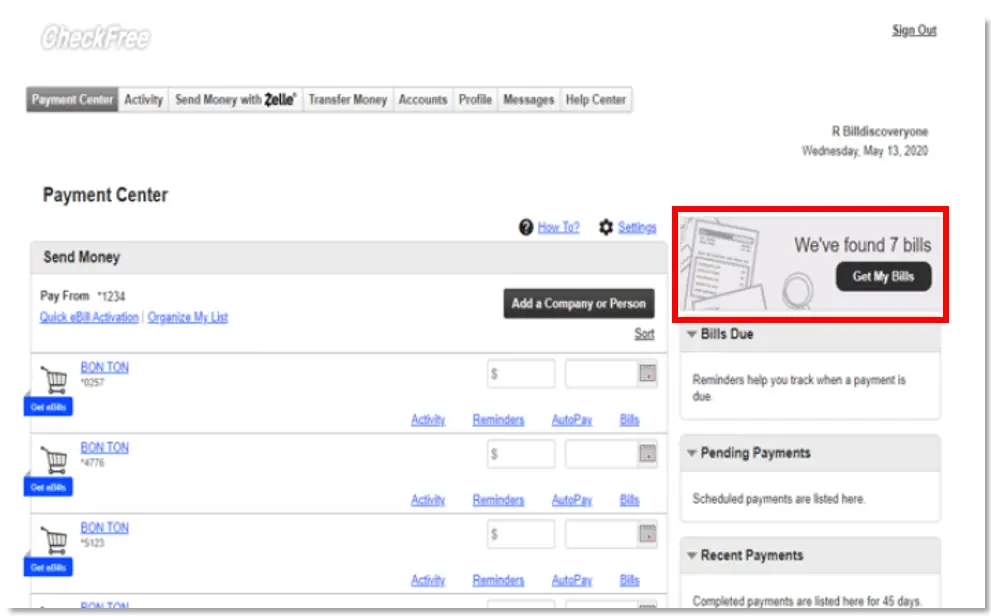
Bill Discovery will automatically connect you with your eligible bills by searching the biller database and if you consent, your credit bureau data. Once the bills are located, you can add them to your list of bills in one click. Bill Discovery greatly reduces the time it takes to set up Bill Pay and reduces the chance of manual input errors.
Bill Discovery will continually search for new bills and alert you if new bills have been found.
Bill Discovery is available in both Online Banking and the Mobile App.
The following are screenshots of how you can set up and use this feature.
You first must consent to have your bills be found through the biller database and your credit bureau data. If you wish to have your credit data used, it is a soft inquiry and your credit score will not be impacted.
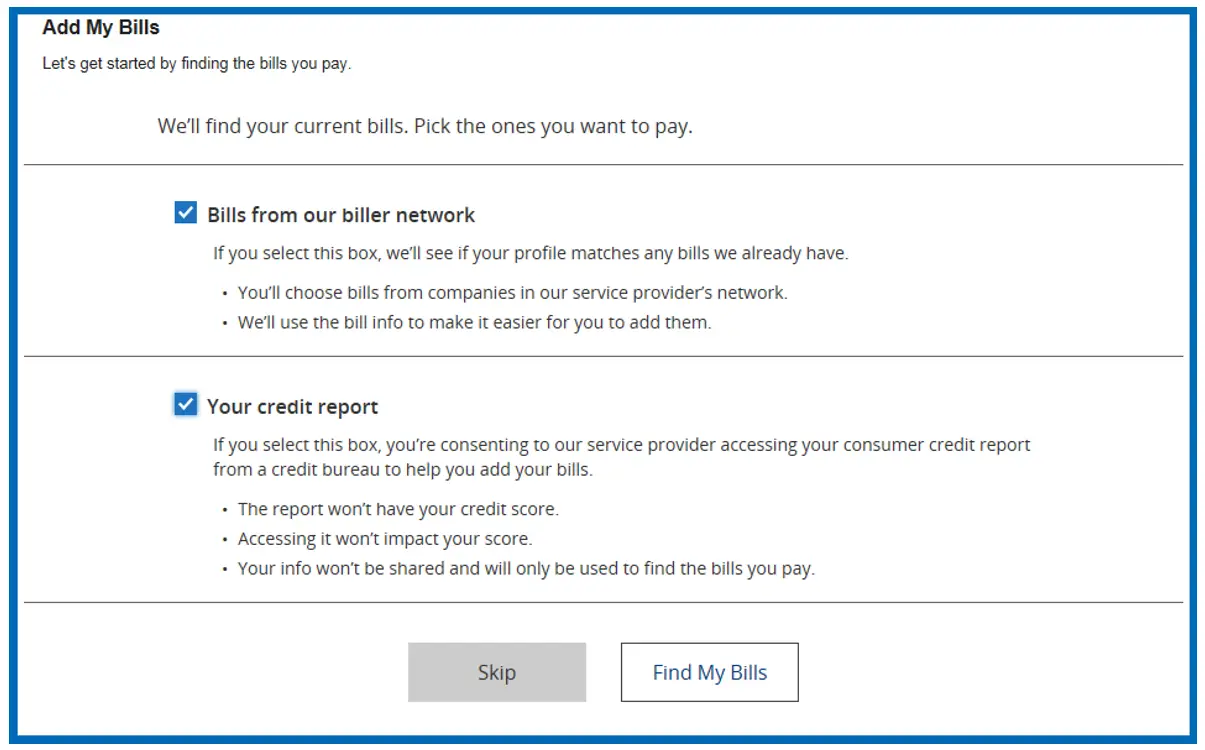
Once you provide consent and click Find My Bills, you will be presented with a page of potential payees.
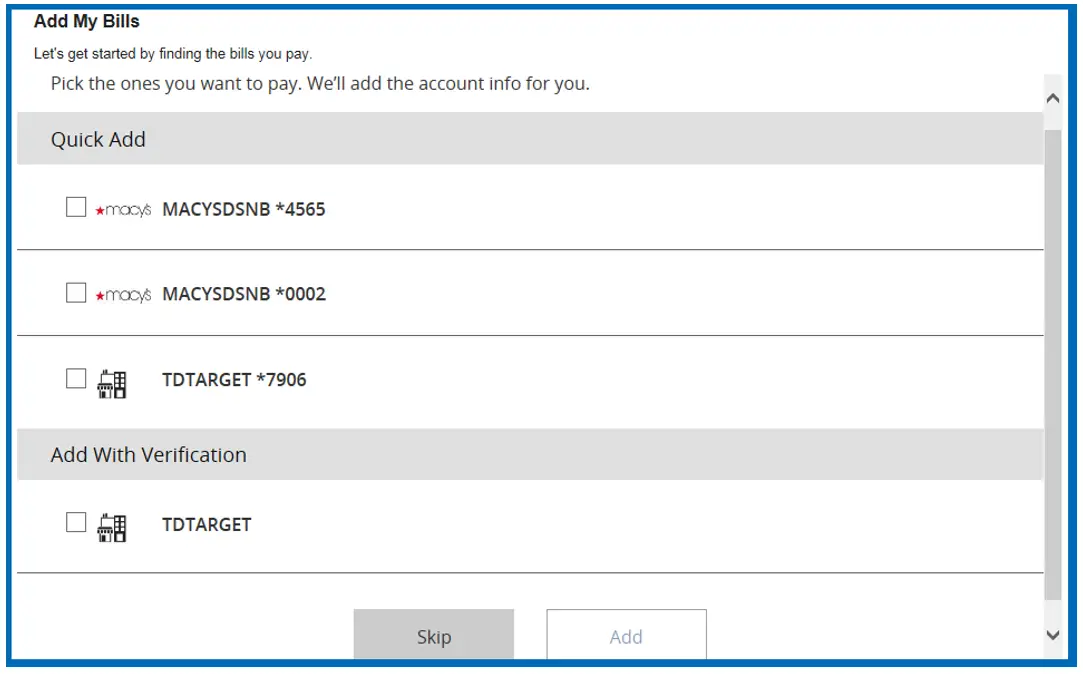
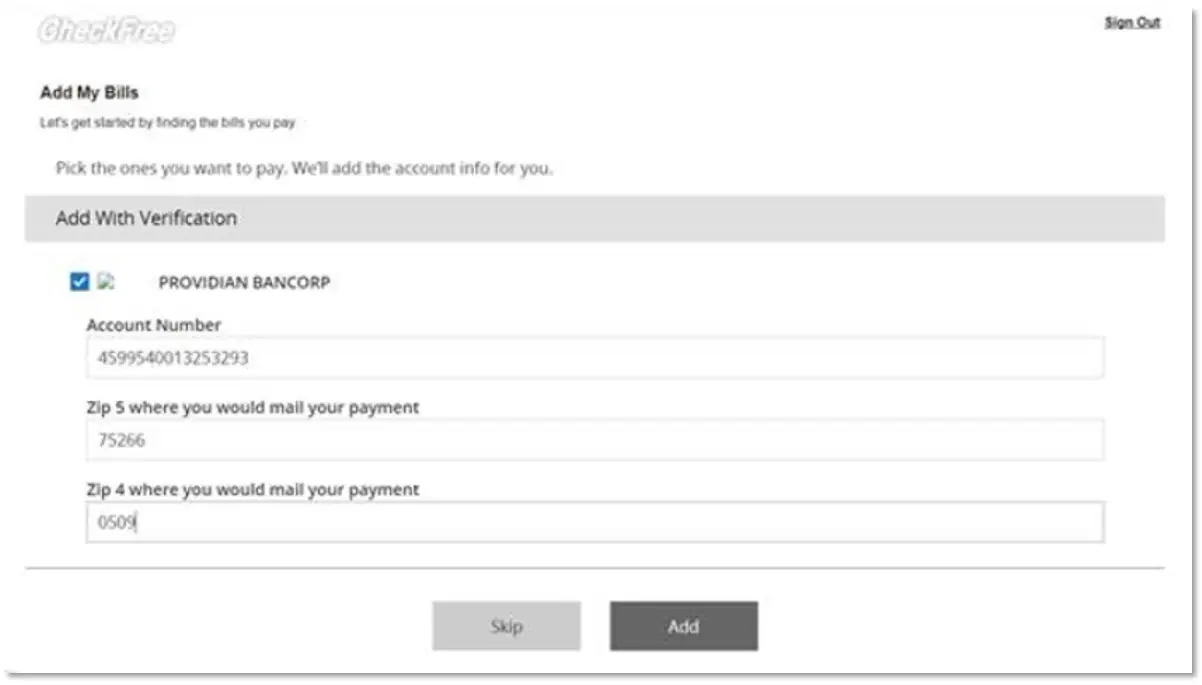
If biller(s) require additional verification upon selecting the biller, you will be provided with the additional verification fields. If the biller does not require any verification then you can add those directly by clicking the Add button.
If you are not yet using Bill Discovery, you may see the following banner ad to begin using the feature.
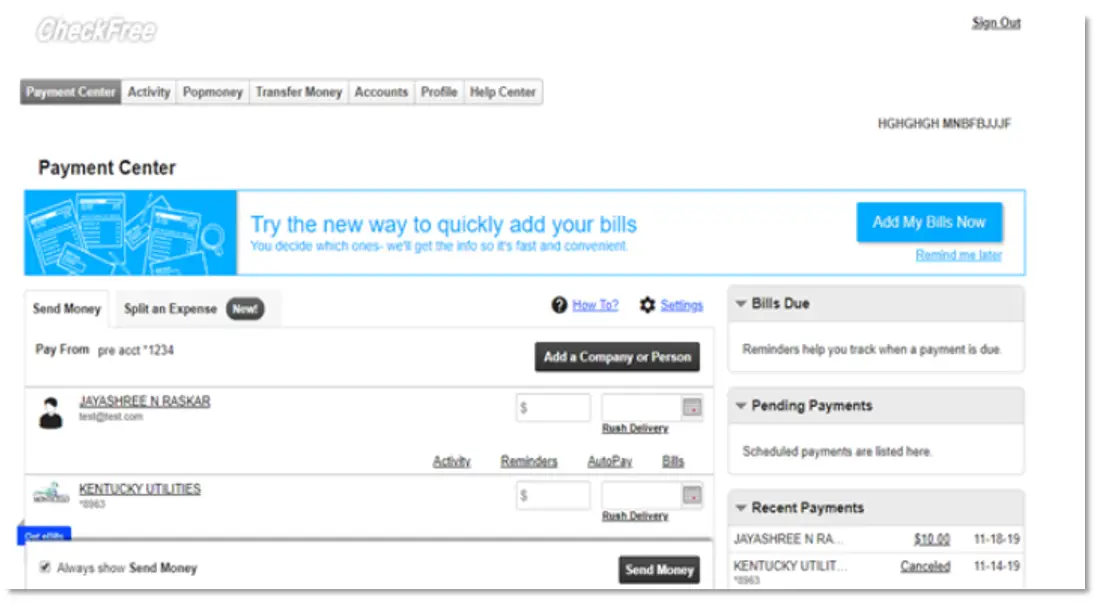
After initial entry into Bill Discovery, new billers found among billers from the biller network or in your credit report will appear in the top, right area of your window. When clicking “Get My Bills”, you will be walked through the process of adding your bills in the same manner as the initial setup.